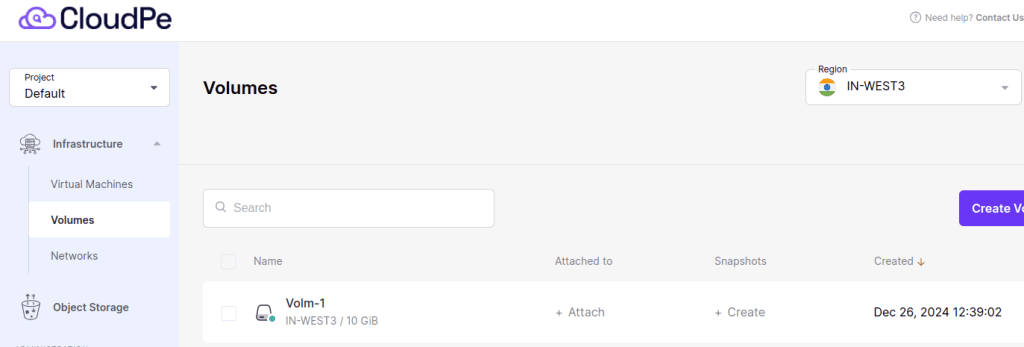
Note: You can only attach and detach non-boot volumes.
Create a Volume described in Creating Volume.
Attaching Volume to Virtual Machine
1: Select the Compute option and navigate to Volume. You can view all the created volumes.
2. Select the Volume to be attached and click on three dots.
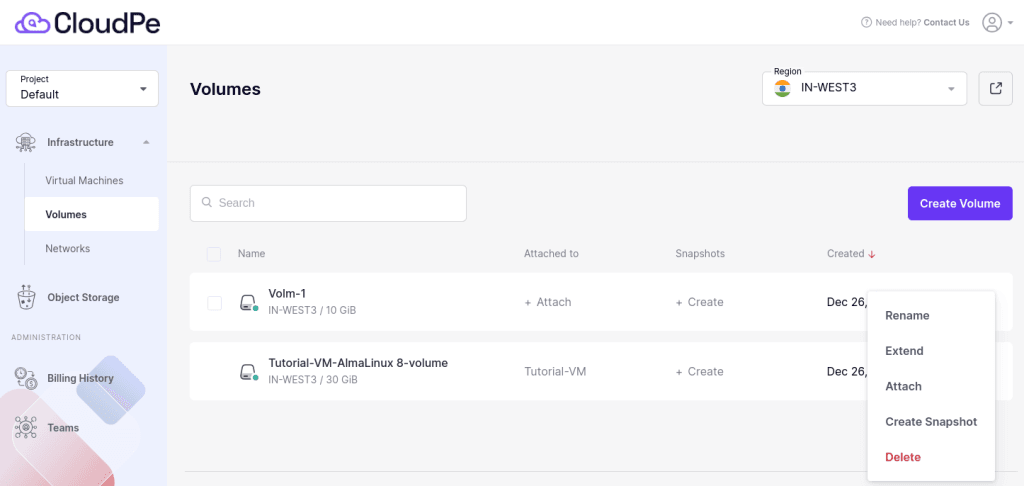
3. Click on "Attach," and a window will appear. Select the virtual machine to which you want to attach the volume. Finally, click "Attach" to confirm and apply.
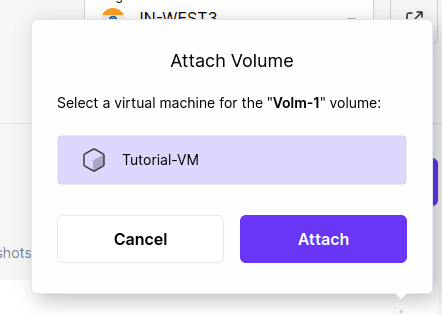
The attached virtual machine for the volume can be viewed in the "Attached to" section.
Once you attached the volume, you can add it to your VM. To know how Click Here for more details.
Detaching Volume to Virtual Machine.
- Select the Volume to be detached and click on three dots.
- Click on "Detach".
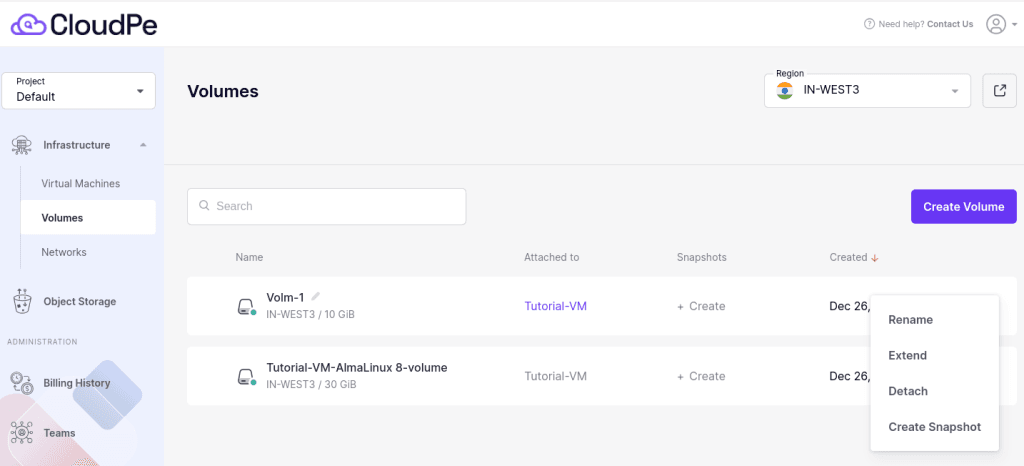
3. A window will appear. click "Detach" to confirm and apply.
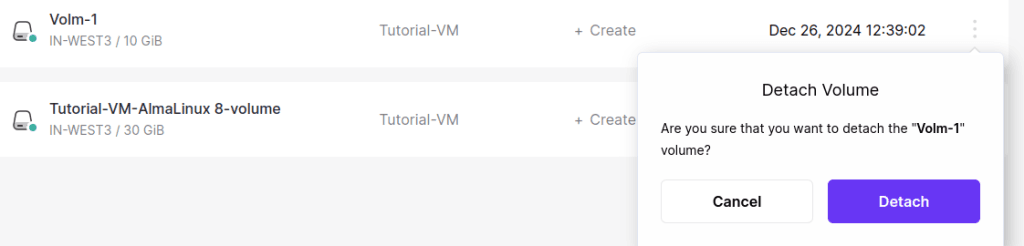
You can observe that the volume is detached from the virtual machine.