
1. Check VM Status from CloudPe Dashboard
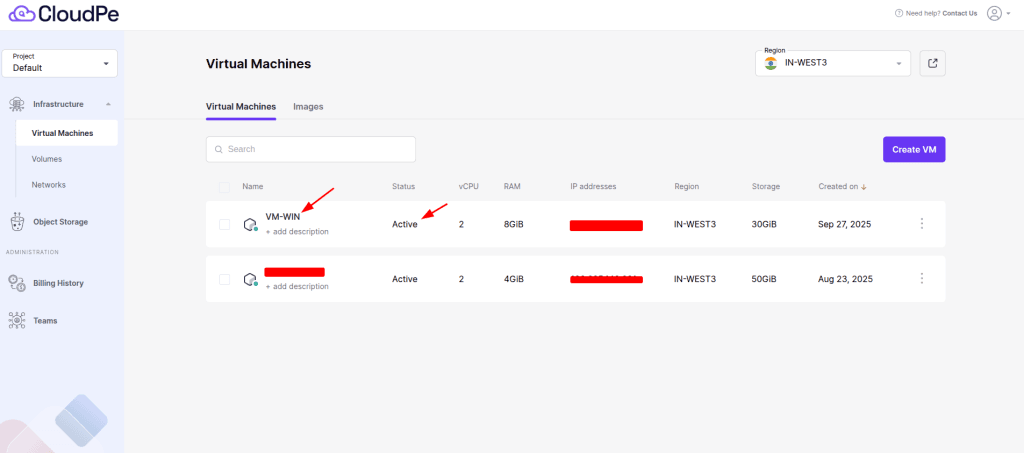
- Login to the CloudPe Dashboard.
- Go to Virtual Machines.
- Verify the VM is in Running state.
- If not, try Start or Reboot.
2. Access Console
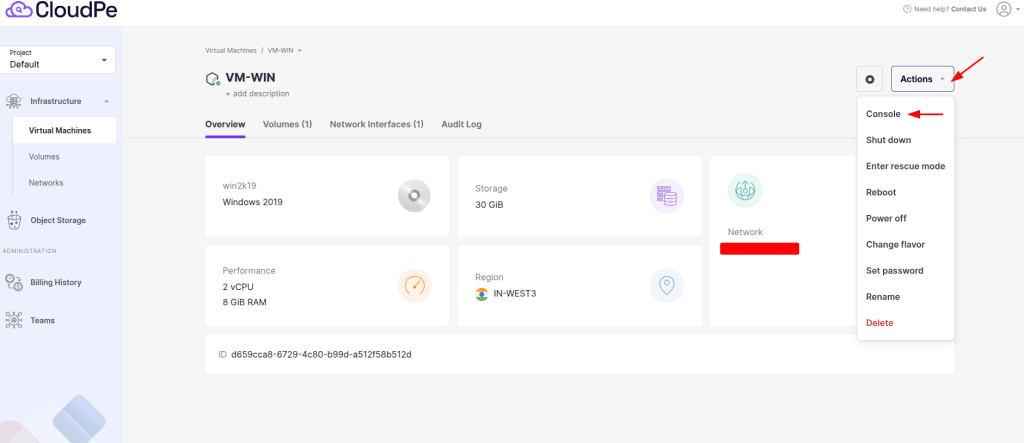
- Use the Console option in the CloudPe panel.
- If console access works, the VM is running but may have network or service issues.
- If console does not respond, escalate to CloudPe Support.
3. Verify Network Configuration
- Ensure the VM has a Public IP if connecting from the internet.
- Check Security Group rules:
- Allow TCP 3389 (RDP).
- If using a custom RDP port, ensure that port is added.
- Click here to manage the security group in CloudPe.
4. Check Windows Firewall Inside VM (via Console)
- Login via CloudPe Console.
- Run:
- wf.msc or open Windows Defender Firewall → Advanced Settings.
- Ensure inbound rule allows RDP (3389). or your custom RDP Port.
5. Confirm RDP Service is Running
- In the console, open Services (services.msc).
- Check Remote Desktop Services status → must be Running.
- If not, right-click → Start / Restart.
6. Check Credentials & RDP Settings
- Use the correct Administrator username and password.
- Ensure RDP port is 3389 (or your custom port).
- Verify the VM is not set to deny RDP connections:
- Right-click This PC → Properties → Remote Settings.
- Ensure Allow remote connections is enabled.
7. Test Connectivity from Your Device
From your local system:
mstsc /v:<VM-Public-IP>: <Port>
If your local machine has Linux
telnet <VM-Public-IP> 3389
8. Still Unreachable?
The VM may have boot/network misconfigurations.
Contact CloudPe Support to check host node health or perform recovery.