
Installing NVIDIA GPU Drivers
Important Notes
- Ubuntu 20.04,22.04 & 24.04 GPU images already include NVIDIA drivers
- Rocky/AlmaLinux and Windows require manual or guided installation
2.1 Ubuntu 20.04,22.04,24.04-GPU (Drivers Pre-Installed)
Validate Driver using below command:
nvidia-smiExpected:
–GPU Name: NVIDIA L4
–Driver Version: Displayed
-No errors (e.g., No devices were found, NVIDIA-SMI has failed)
If Driver Is Not Installed or Reinstall Is Needed
Step 1: Remove Existing NVIDIA Drivers
sudo apt purge '^nvidia.*' -y
sudo apt autoremove -y
sudo apt autoclean -y
Step 2: Install Recommended NVIDIA Driver
sudo ubuntu-drivers autoinstall

This installs the recommended stable driver for Ubuntu 20.04,22.04 & 24.04 (commonly nvidia-driver-535 or 550, depending on repository support).
Step 3: Reboot
sudo rebootStep 4: Post-Reboot Validation
nvidia-smiOptional: Install Specific Driver Version (Manual)
If a specific version is required:
sudo apt install nvidia-driver-550 -y
sudo reboot
2.3 Rocky Linux / AlmaLinux 8 & 9
Step 1: Update System
sudo dnf update -y
sudo reboot
Step 2: Install NVIDIA Drivers
sudo dnf install epel-release -y
sudo dnf install cuda-drivers -y
sudo reboot
Validation
nvidia-smiReinstall / Rollback
sudo dnf remove 'nvidia*' 'cuda*' -y
sudo reboot
sudo dnf install cuda-drivers -y
2.4 Windows Server (2019 / 2022 / 2025)
Driver Installation
- Download NVIDIA Driver for L4
- Run installer
- Reboot VM
One-line GPU verification command (PowerShell)
Option1: Open Powershell and run command nvidia-smi
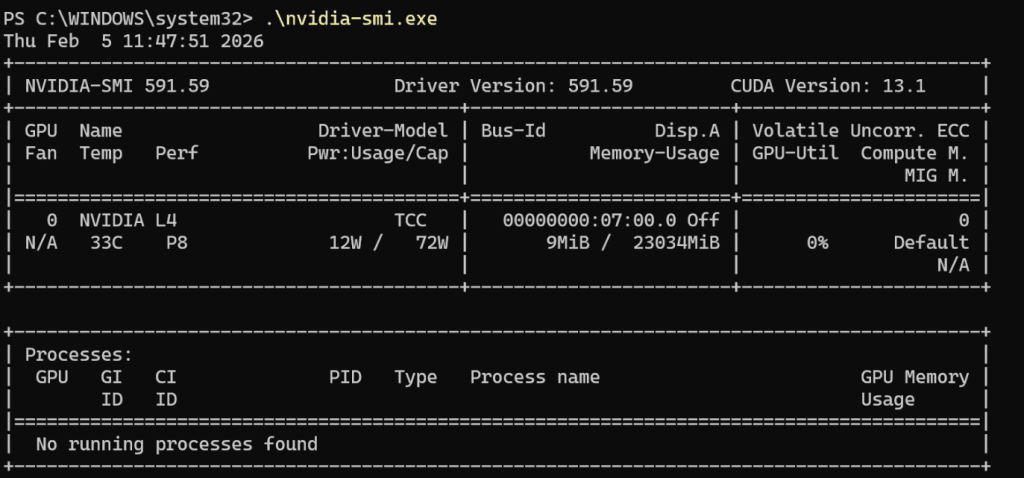
Option 2:
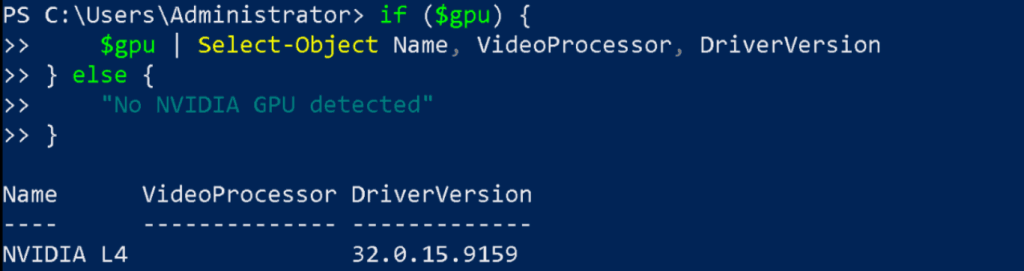
$gpu = Get-CimInstance Win32_VideoController | Where-Object { $_.Name -match "NVIDIA" }

if ($gpu) {
    $gpu | Select-Object Name, DriverVersion
} else {
    "No NVIDIA GPU detected"
}
Expected output (example):
Name        DriverVersion
----        -------------
NVIDIA L4  32.0.15.9159
OR
Check GPU from Device Manager (GUI)
Steps
- Press Win + R → type
devmgmt.msc→ press Enter - Expand Display adapters
Expected result
- You should see:
NVIDIA L4
- No warning icons (⚠️ / ❌) should be present
NOTE: Why GPU metrics do not appear in Windows Task Manager for NVIDIA L4
NVIDIA L4 GPU metrics are not displayed in Windows Task Manager because the L4 operates as a compute-only data-center accelerator and does not expose the WDDM performance telemetry required by Windows Task Manager. This is expected behavior. GPU utilization and health metrics should be monitored using NVIDIA-provided tools such as nvidia-smi or NVIDIA DCGM.
WDDM can be enabled for Data-Center GPUS i.e l4 gpu but for this vGPU (Virtual GPU) Drivers
NVIDIA’s vGPU software drivers (GRID, vWS, etc.) allow data-center GPUs to be presented to Windows as virtual display devices.
This enables WDDM functionality on GPUs that normally default to TCC/compute mode.
To install and use NVIDIA vGPU drivers on Windows, you must have a valid vGPU license (e.g., vWS, vPC, vApps).