
Log in to the CloudPe Dashboard
Access the CloudPe dashboard using your credentials.
Navigate to the Virtual Machines List
Locate the list of virtual machines available in your account.
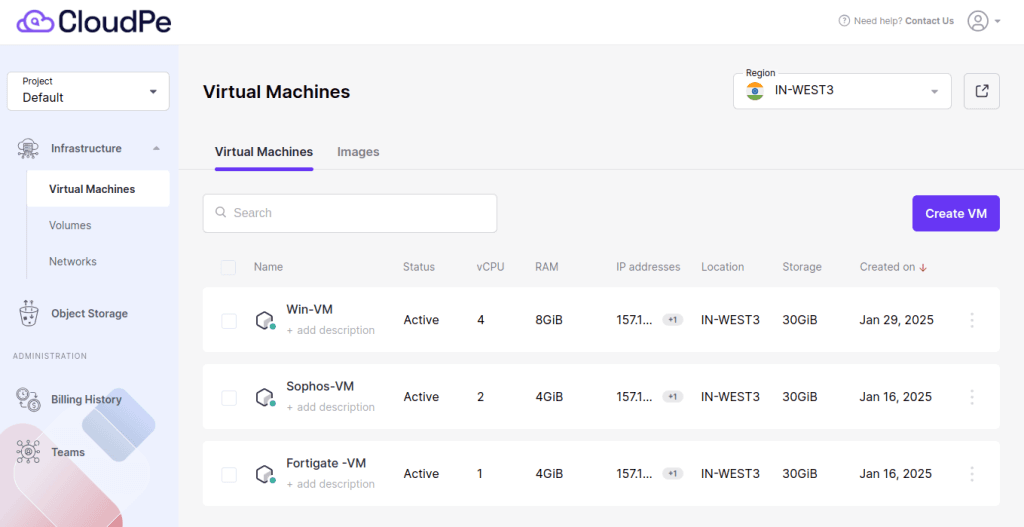
Identify and select the Windows VM for which you need to reset the password.
Click on the ‘Action’ dropdown menu.
In the dropdown, find and select the ‘Set Password’ option.
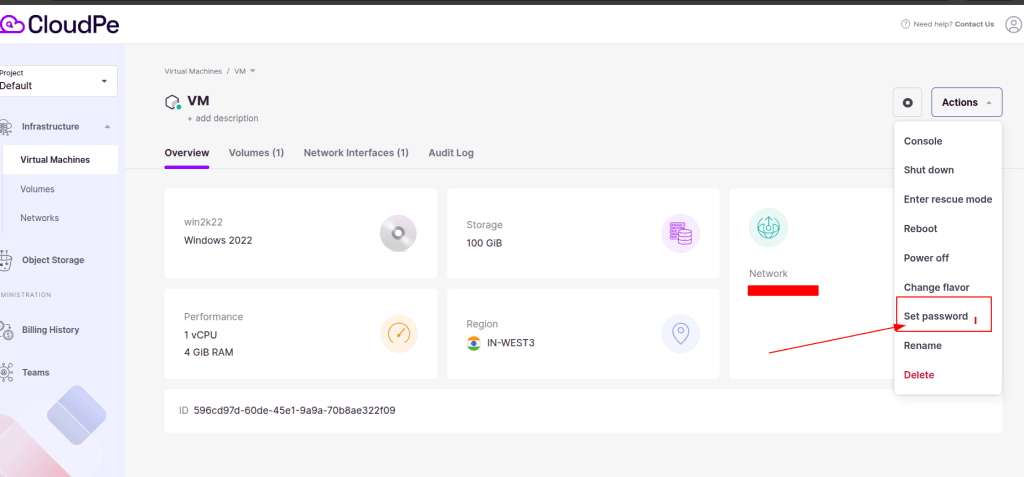
Enter a Strong Password for your VM.
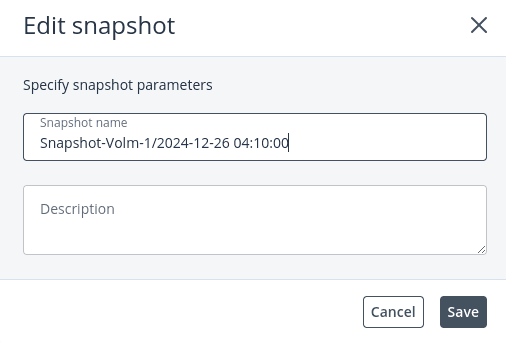
Click ‘Set’ to apply the new password.
Use the updated credentials to access your VM securely.
Strong Password Guidelines:
To ensure security, use the following best practices when creating a password:
- Minimum Length: At least 12–16 characters.
- Combination of Characters: Include uppercase and lowercase letters, numbers, and special symbols (@, #, $, etc.).
- Avoid Common Words: Do not use easily guessable words like ‘password123’ or your name.
- No Reuse: Avoid reusing old passwords.
By following these steps and best practices, you can ensure the security of your VM and prevent unauthorised access.
Post-Reset Login Verification:
After resetting your VM password, it is important to verify that the new credentials are working correctly.
For Windows VMs:
- Open a new RDP (Remote Desktop Protocol) connection to the VM’s IP address.
- Enter the username and new password to verify access.